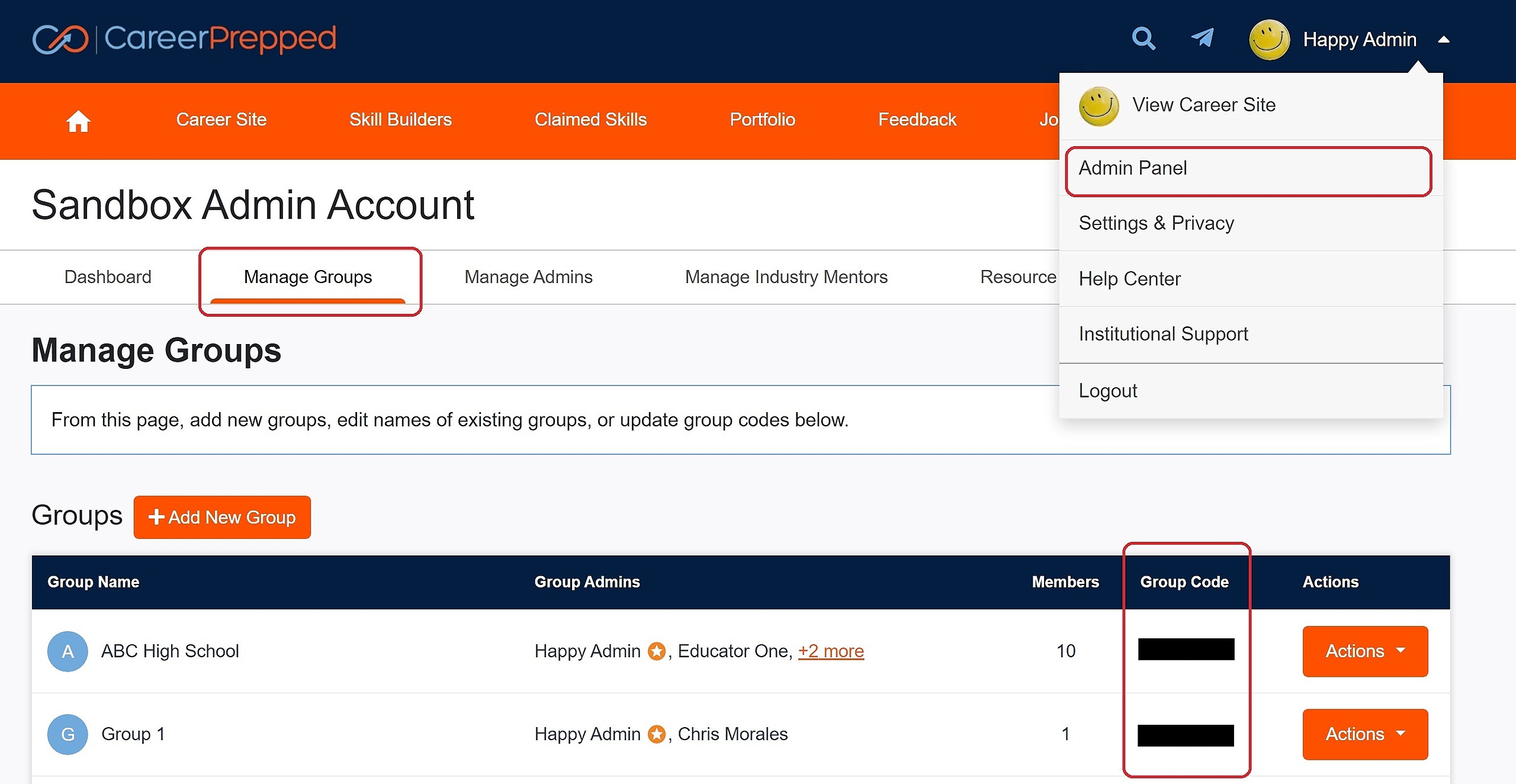
Onboarding users is simple. Once you have an account and at least one "group" for users to join, share that group's unique "group code" with them to sign up at www.careerprepped.com/group. Follow these step-by-step instructions:
Steps:
Sign in to CareerPrepped.
In the upper right navigation dropdown, select Admin Panel (visible only if you have admin privileges).
On the Dashboard tab, find the blue collapsible menu listing the groups you administer. Select the group to invite users (note: if you have only one group, this menu will not be collapsible).
Click the orange Copy Group Code button to copy the unique code for the selected group.
Hover over the orange question mark tooltip for instructions on sending users to sign up with the group code. Direct users to www.careerprepped.com/group to join using the code. Once they sign up, they’ll be added to your user directory table in the Dashboard.
Note: Students can belong to unlimited groups. If a student is already registered on CareerPrepped, they can join additional groups at any time by going to www.careerprepped.com/group and entering a new group code—following the same process as their initial sign-up.
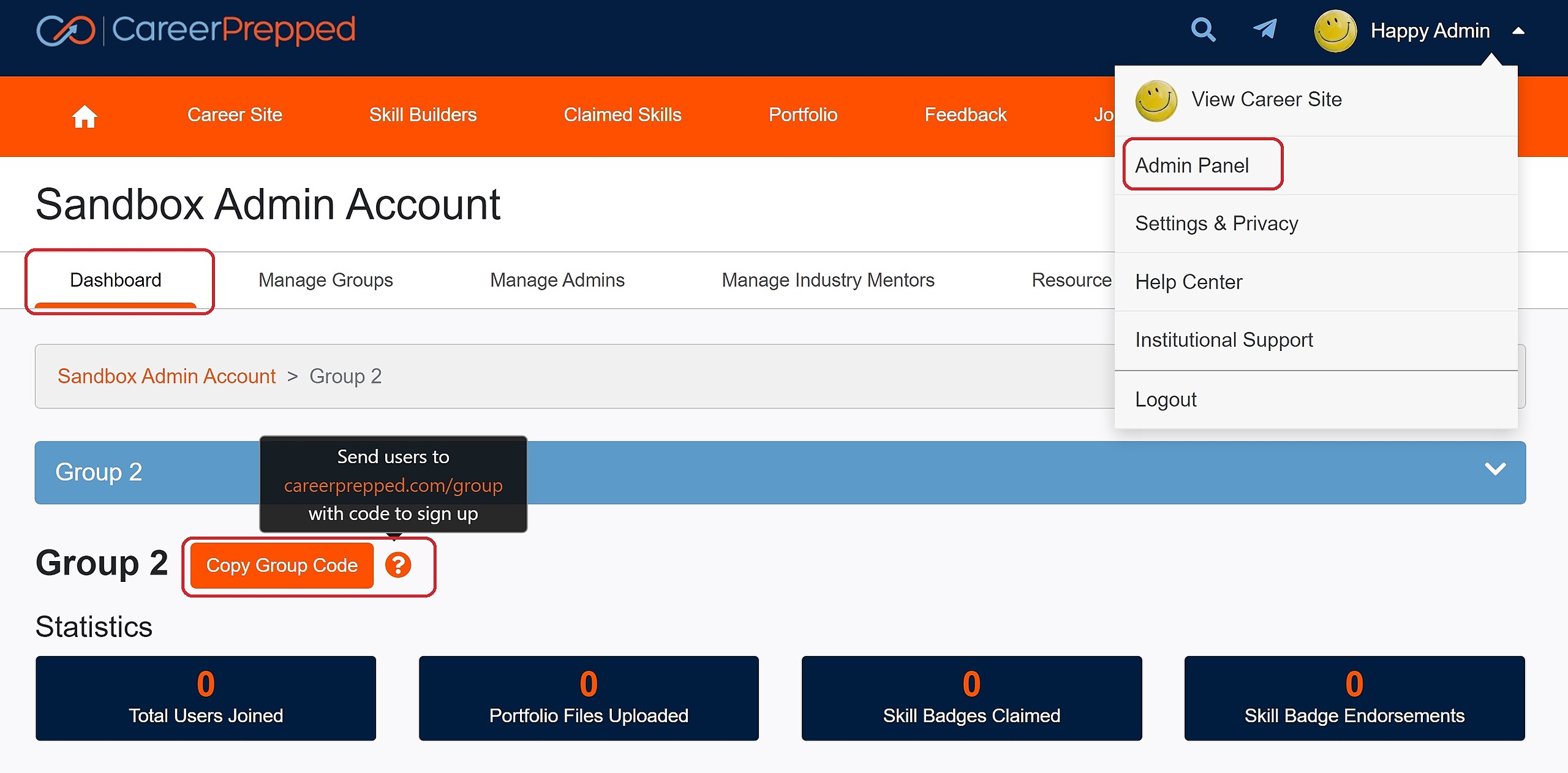
Group Codes for every group you create are also in your Admin Panel in the "Manage Group(s)" Tab