Account Types:
Those with a free Talent Developer account for individual users do not have the feature to add/remove group admins. Those who are the Primary Admin of their organization's Talent Developer account or who have been made a Group Admin for one of their organization's groups have the feature to add/remove unlimited group admins.
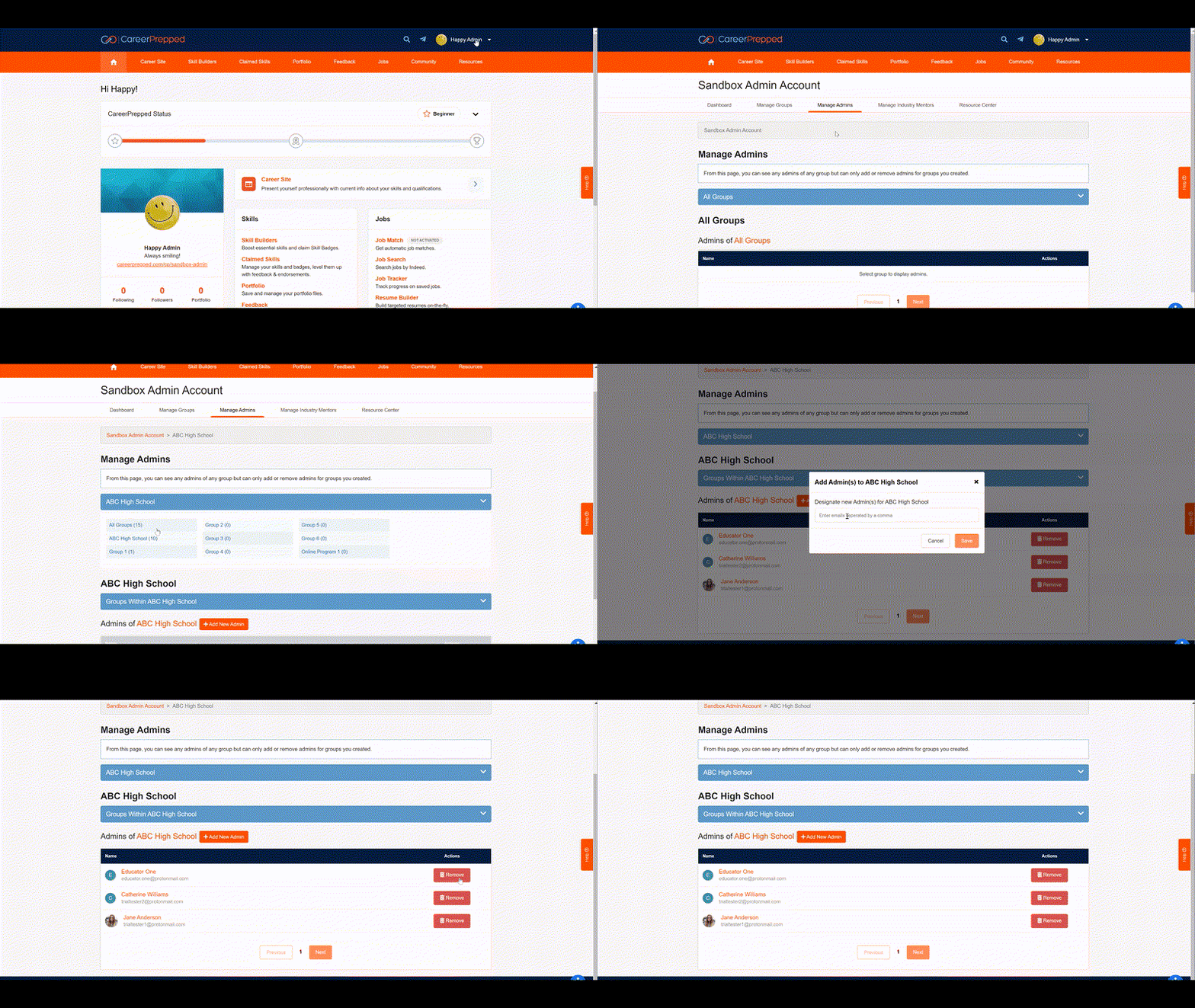
Steps to Add New Group Admins
1. Sign In to CareerPrepped.com
2. Click your avatar in the upper right to reveal a drop down navigation menu
3. Click "Admin Panel"
4. Click the "Manage Admins" tab
5. Select the group for which you'd like to add group admins
6. Click the orange "+Add New Admin" button
7. Enter the emails of the people you'd like to add as an admin, separated by comma (check that you enter emails correctly)
8. Click the "Save" button
Result: The individuals whose emails you entered will receive a system-generated email informing them that they've been made a group admin of the group you selected with instructions on completing the process.*It's recommended you talk with the person before adding them so they expect a system email and are not surprised.
Steps to Remove Group Admins:
1. Sign In to CareerPrepped.com
2. Click your avatar in the upper right to reveal a drop down navigation menu
3. Click "Admin Panel"
4. Click the "Manage Admins" tab
5. Select the group for which you'd like to remove group admins
6. Click the red "Remove" button for any admin you'd like to remove
7. Click the "Yes Remove" button to confirm you'd like to remove an admin
Result: The admin will be notified via a system-generated email that they have been removed as an admin. *It's recommended you talk with the person before removing them so they expect a system email notifying them they have been removed and are not surprised.
See the animated GIF below that shows the steps to add or remove admins