You can give feedback to your learners in multiple ways:
Give formal or informal feedback in one-on-one conversations.
Give informal feedback in private messages to learners on the CareerPrepped platform.
Give informal feedback on portfolio files in the “comments” area when viewing a portfolio file.
Give formal feedback by requiring learners to submit links to specific Skill Badges, their Career Site or portfolio items as assignments, and using your institution’s established systems (such as a Learning Management System). We even provide Skill Badge Rubrics if you want to give formal feedback, perhaps as part of a grading process which can be found here.
Establish consistent touch points to review learners' Career Sites, their Portfolio, and/or Skill Badges to monitor their progress and intervene if you are seeing red flags.
Consider accessing the Skill Builder Provide Constructive Feedback for a refresher.
Method 1. Give Feedback via CareerPrepped's Feedback System for Students' Claimed Skills
If you're an admin of CareerPrepped's Organizational Account and want to proactively give learners feedback on their skill evidence, steps are below. (Admins with a sponsored "Educator Account" [limited features] do not have access to this feature but can use Method 2.)
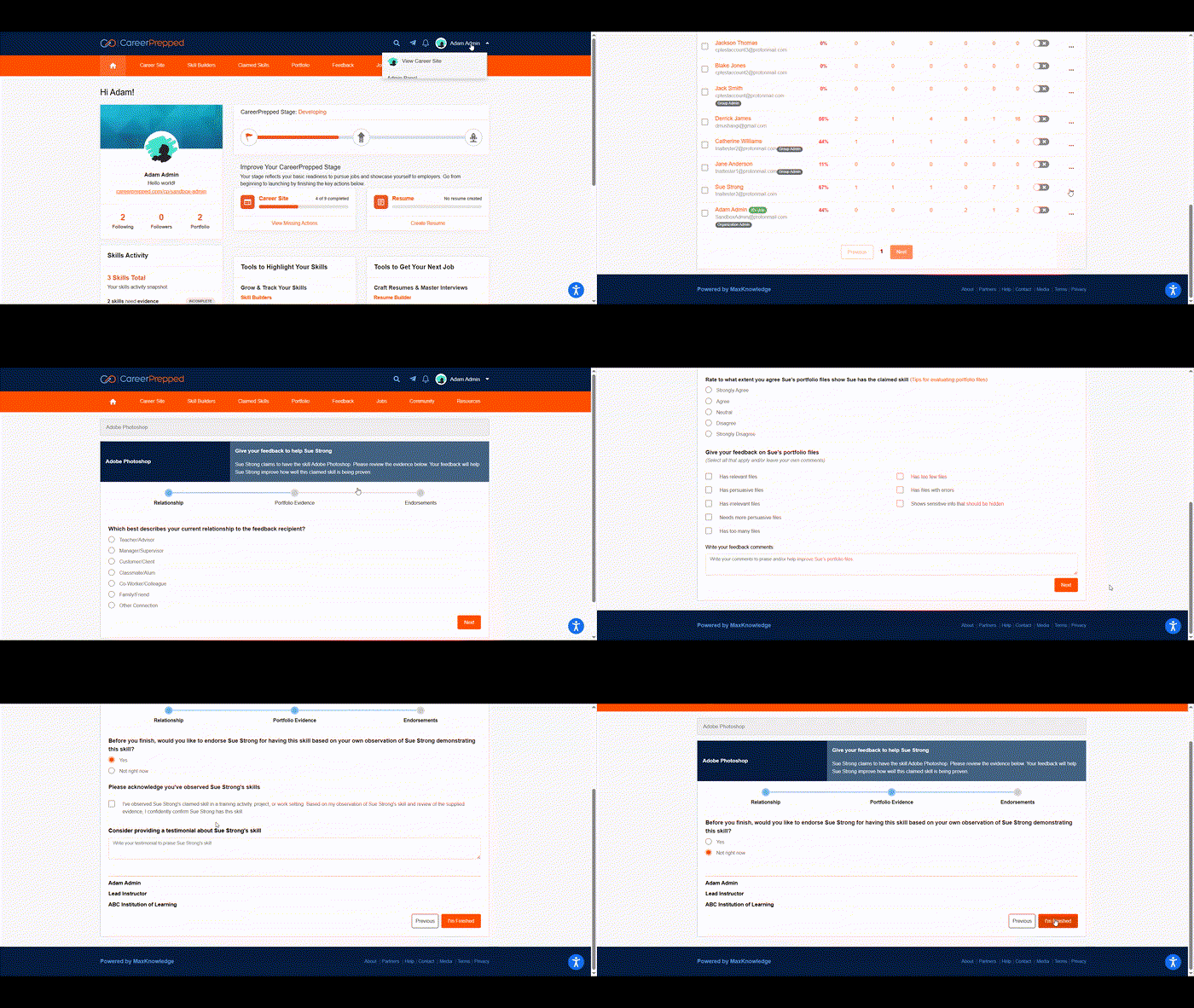
1. Sign in to CareerPrepped.com
2. Click your avatar in upper right corner to reveal the drop down navigation
3. Select "Admin Panel"
4. Find the learner you want to give feedback to in your user table
5. Click the orange "Actions" button corresponding to the learner in the user table
6. Click "Give Feedback"
7. Select the claimed skill you want to review to give feedback on the learner's skill evidence
8. Respond to all questions in the review process and click "I'm Finished"
Result: The learner will be notified the evidence for their claimed skills was reviewed and your feedback will result in a star rating for the learner's claimed skill depending on your rating selections. Ratings can be improved if the next time you rate the learner's skill, you give higher ratings. New ratings will replace old ratings allowing your learners to take action on feedback received to improve their star ratings.
See the Animated GIF below of the steps above
Method 2. Responding to Requests
You can also give feedback by responding to learners who request it from you. Steps are below. (This applies to both users of our Educator Account and our Organizational account)
1. 1. Sign in to CareerPrepped.com
2. Click "Feedback"
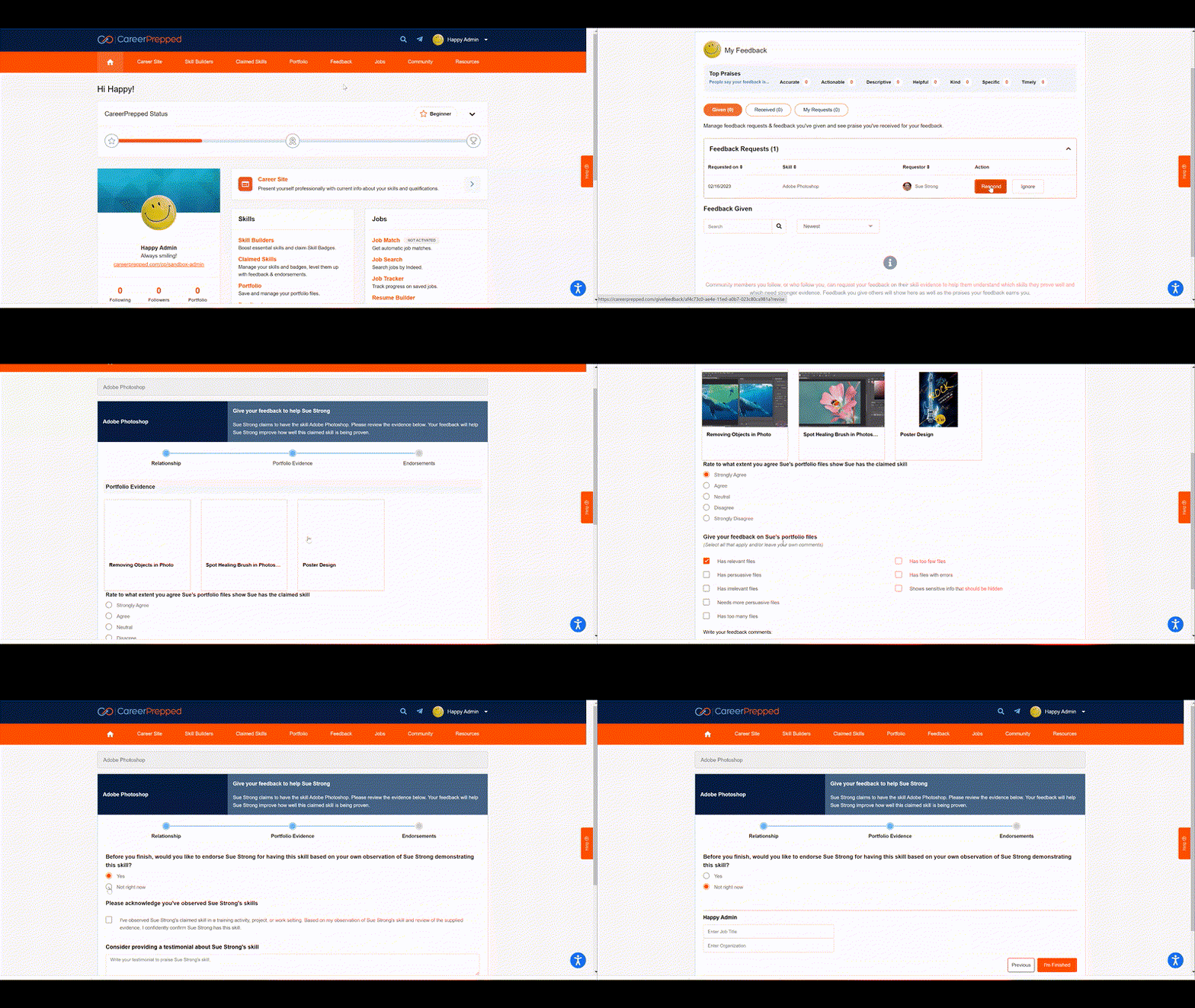
3. If you have a feedback request from a learner, you can click "Respond" to give your feedback
4. Respond to all questions in the review process and click "I'm Finished"
See the Animated GIF below of the steps above