The Industry Mentors feature is accessible only to institutions with a CareerPrepped Talent Developer account. With this feature, institutions can invite employer partners to join their online community, enabling them to provide students with valuable feedback on their skill evidence. This feature facilitates virtual engagement between institutions and employers, streamlining the process of meaningful interaction with students and strengthening industry relationships.
For employers, your invitation for them to become an Industry Mentor gives them the following benefits:
Become a brand ambassador for their organization to expose their company to your talent pool
Build their own professional brand
Become a role model for aspiring professionals
Connect with potential hires in a meaningful way
Enhance their feedback skills and leadership qualities
Get free access to the CareerPrepped platform for their own use
How to add an Industry Mentor
Step 1. Talk to your employer partners and explain what it means to be an industry mentor. They will join your online CareerPrepped community to be available to give students feedback on how well they evidence their claimed skills. Explain the benefits for them, not just your students. Industry Mentors will be in full control of how many requests they want to be available to receive so they control their time.
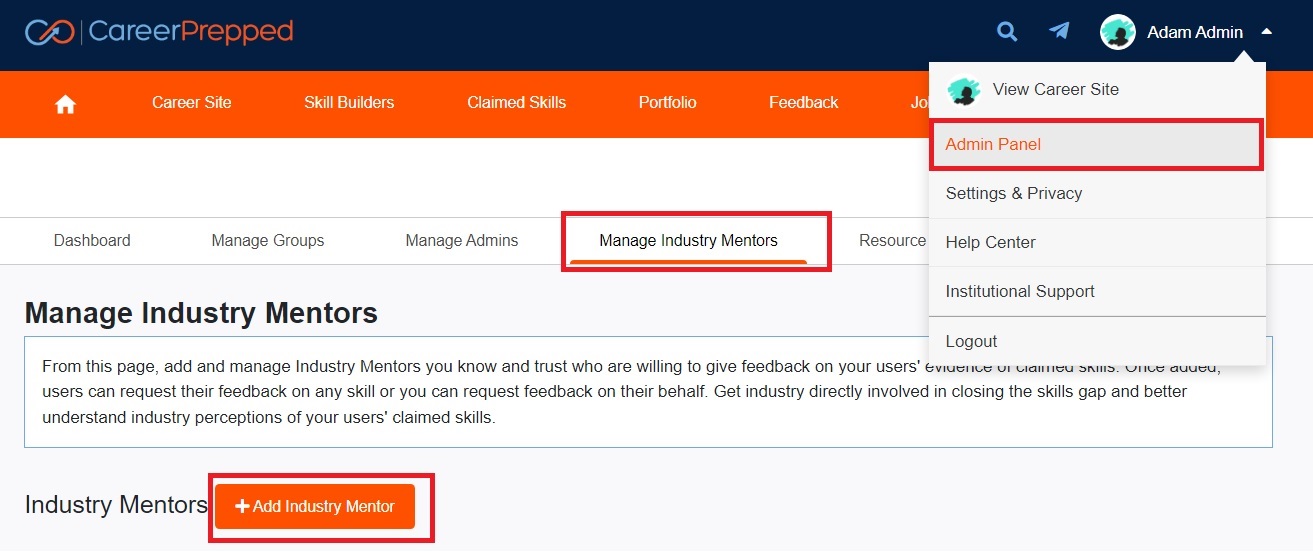
Step 2. If an employer wants to become an Industry Mentor, sign in to CareerPrepped and navigate to "Admin Panel" > Manage Industry Mentors tab. Click the "+ Add Industry Mentor" button.
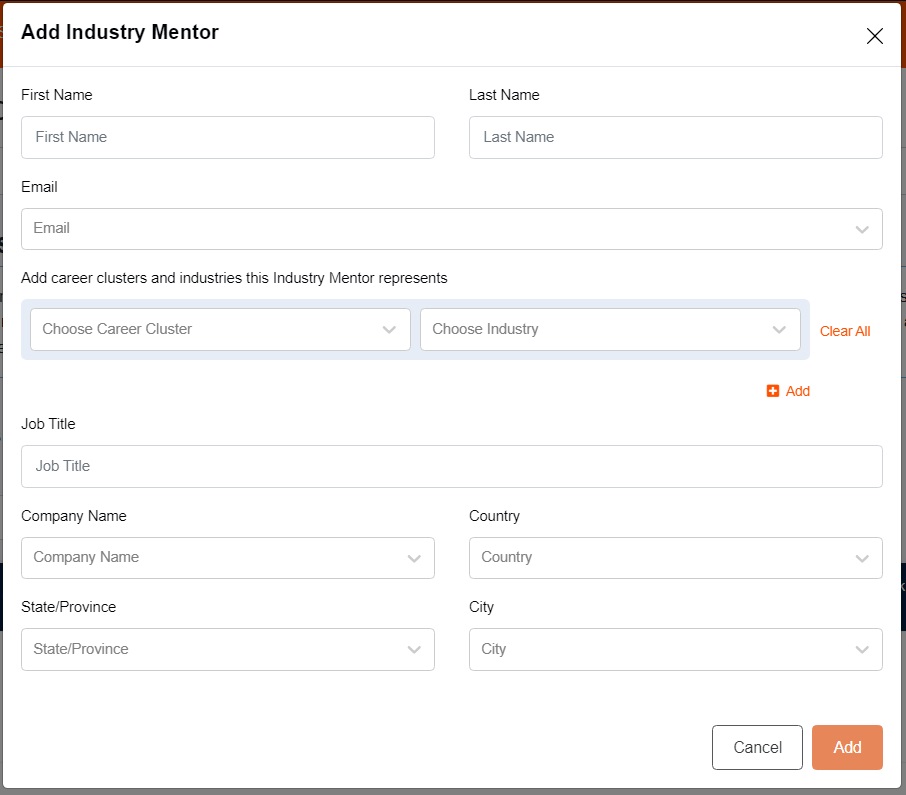
Step 3: Complete the form and click "Add" to finish creating the Industry Mentor account. The Industry Mentor will receive an email at the email address you used to create their account. It will contain a link so that they can create their password and sign in. They will display in your "Manage Industry Mentors" tab in the Industry Mentors table. From the table, you can remove Industry Mentors if needed. This will not delete their account; it will simply disassociate them from your institution and they will no longer be available to give your students feedback.