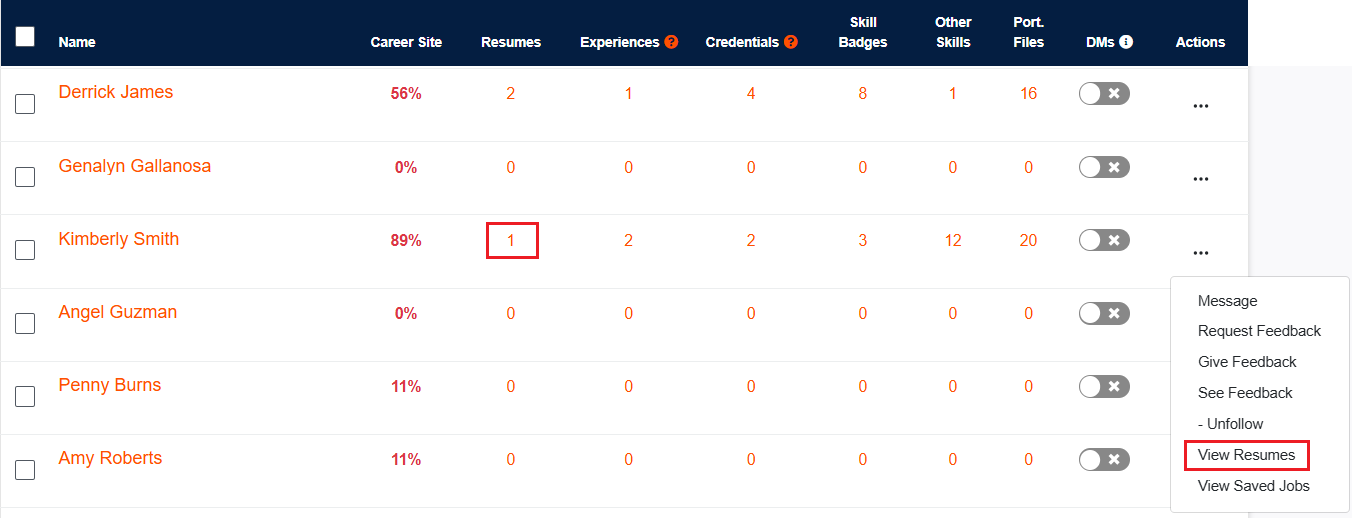
If your students have created resumes saved in CareerPrepped, you can view them by following these steps:
If your students have created resumes in CareerPrepped, you can view them in two ways:
Option 1: Click the Resume Count
Sign in to CareerPrepped.
Go to the Admin Panel.
In the Resumes column of the user table, locate the student.
Click the number in the Resumes column.
This will open a list of all resumes the student has saved.
You can download any resume from there.
Option 2: Use the Actions Menu
Sign in to CareerPrepped.
Go to the Admin Panel.
Click the Actions button (three dots) next to the student's name.
Select View Resumes from the dropdown menu.
This will take you to the same view where you can download the student’s saved resumes.
💡 You can also refer to the image below for a visual of both methods.