

If your students have uploaded files to their portfolio, you can view them directly from the Admin Panel.
Steps to View a Student’s Portfolio:
Sign in to CareerPrepped.com
Click your avatar in the upper-right corner
Select Admin Panel from the dropdown
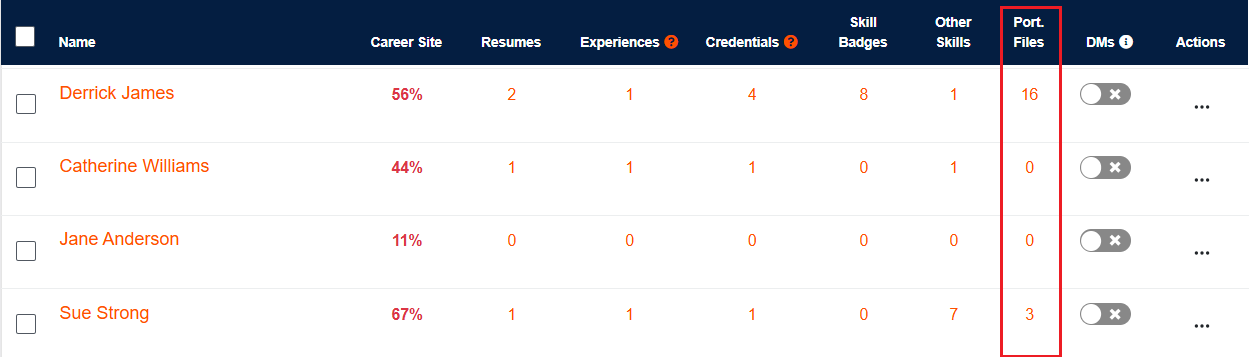
In the Port. Files column of the user table, locate the student
Click the number in that column (e.g., “3”) to view all the student’s uploaded portfolio files.
Also Available on the Career Site
You can also view a student’s publicly visible portfolio files directly from their Career Site. From the Admin Panel, click the student’s name in the user table to open their Career Site, then click View Portfolio. This will display only the portfolio files the student has chosen to make visible based on their privacy settings.